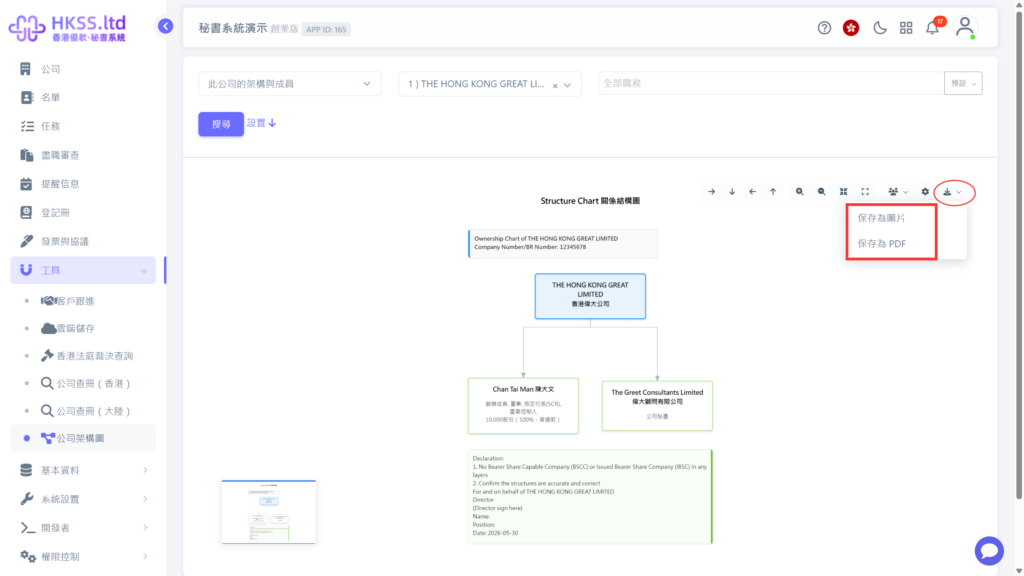
This tutorial guides you to generate a customizable company structure chart.
Preparation
- Plan what information should be displayed in the company structure chart.
Step-by-Step
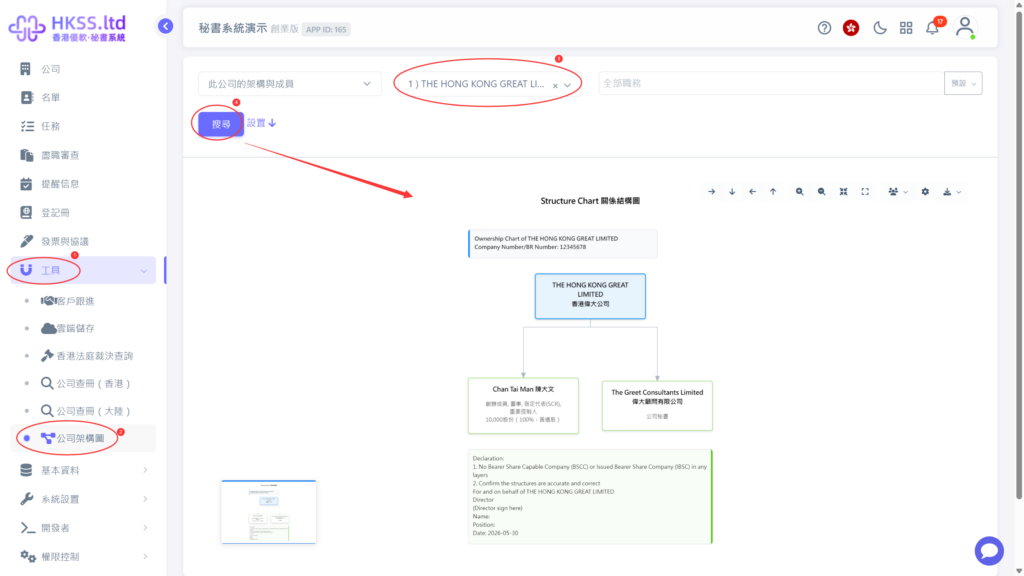
- Click "Tools" => "Company Structure Chart" in the left menu.
- Select the target company, then click "Search".
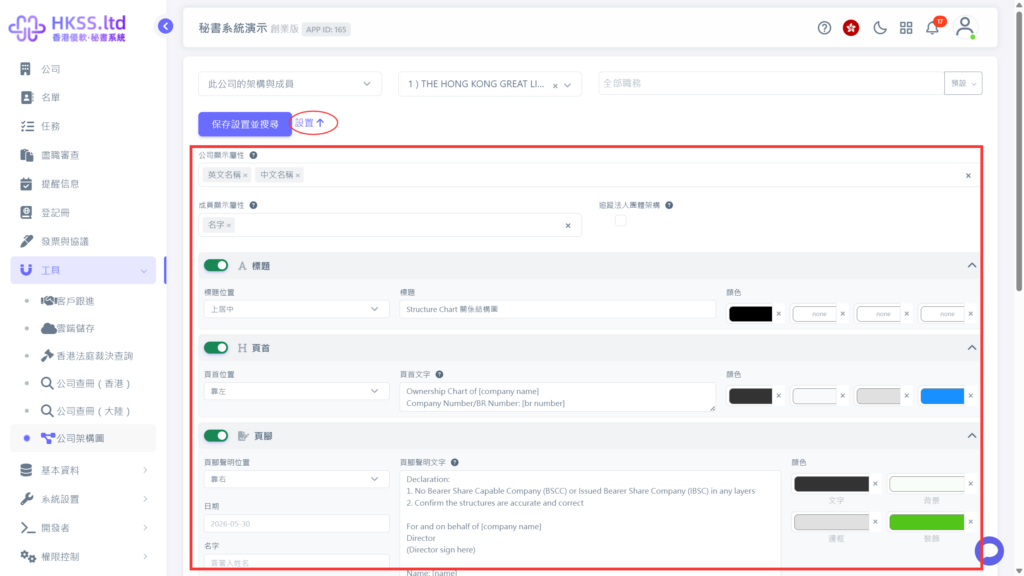
- The company structure chart provides multiple customization options.
- For text, font, and color settings, click "Settings".
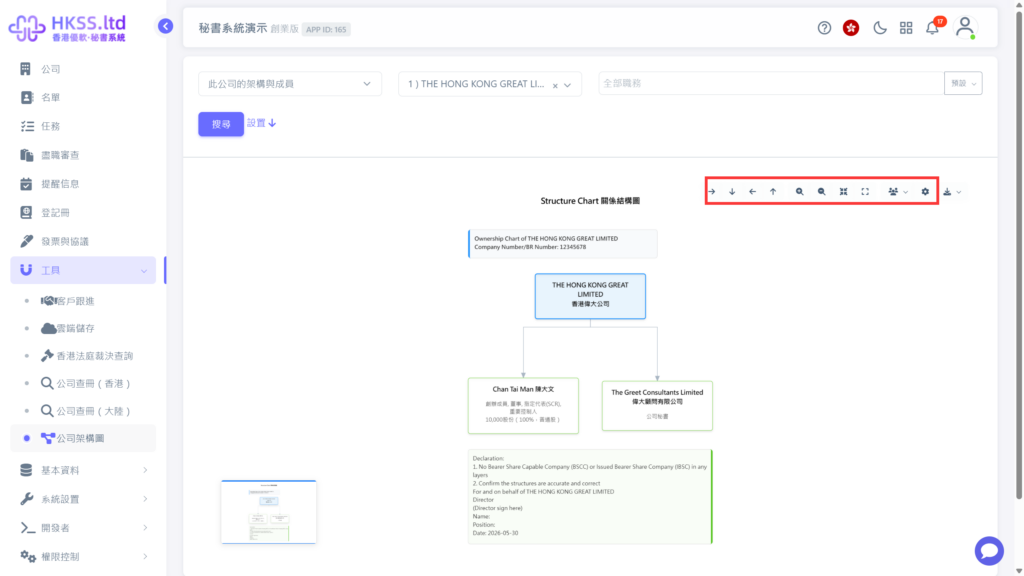
- For direction, viewing mode, and whether to show entities or individuals, use the "Settings" option at the top-right of the preview area.
- After confirming the preview, click the download button to save the chart.