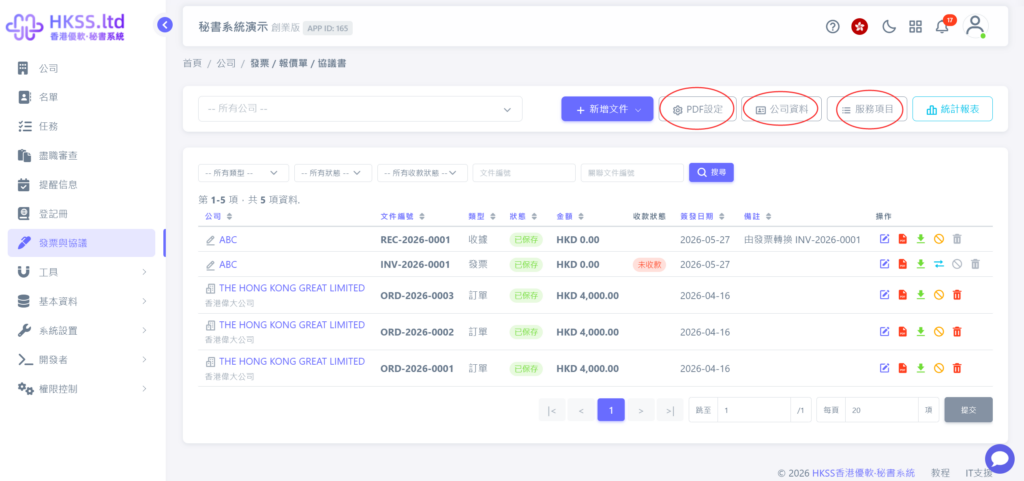
This tutorial guides you through the Invoice and Agreement feature.
Preparation
- Plan the type of business document and required content: agreement, quotation, invoice, receipt, contract, or order.
Step-by-Step
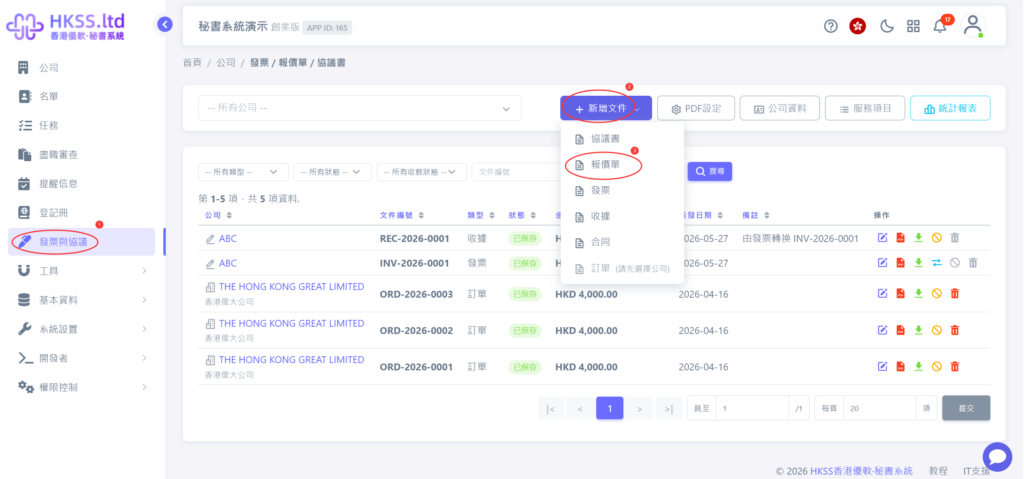
- Click "Invoice and Agreement" in the left menu.
- Create a business document (this tutorial uses "Quotation" as an example).
- Enter the required business document data on the left (typically client information), and review the preview on the right.
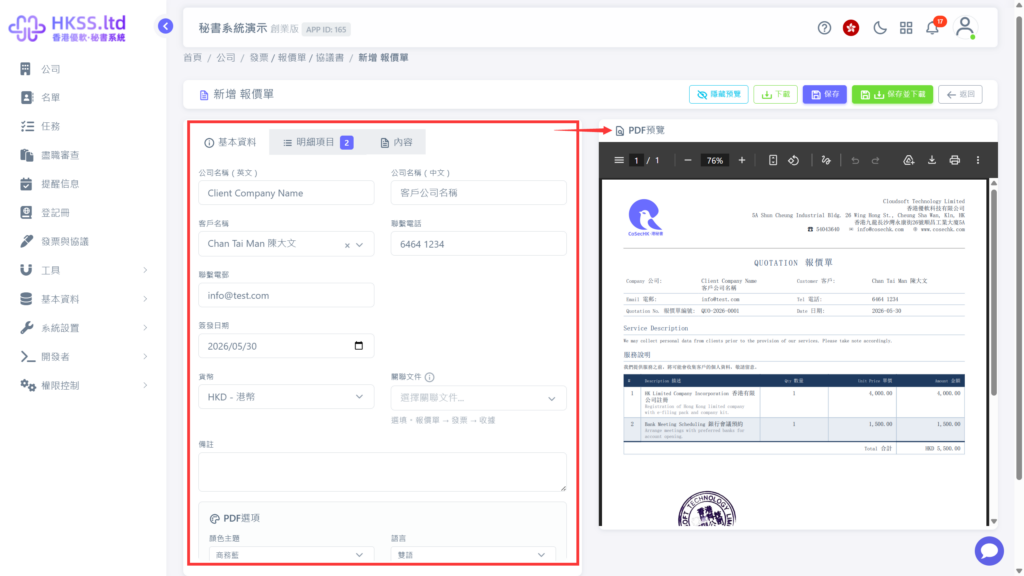
- After confirming the preview, click "Save and Download" to get the final file.
For business document template settings, refer to the following:
- PDF Settings: configure document color, layout, legal clauses, and header/footer notes.
- Company Information: configure your secretary company's details, including name, address, and logo/seal.
- Service Items: configure service names, descriptions, and prices, such as Hong Kong company incorporation, accounting and audit support, and company bank account setup.